
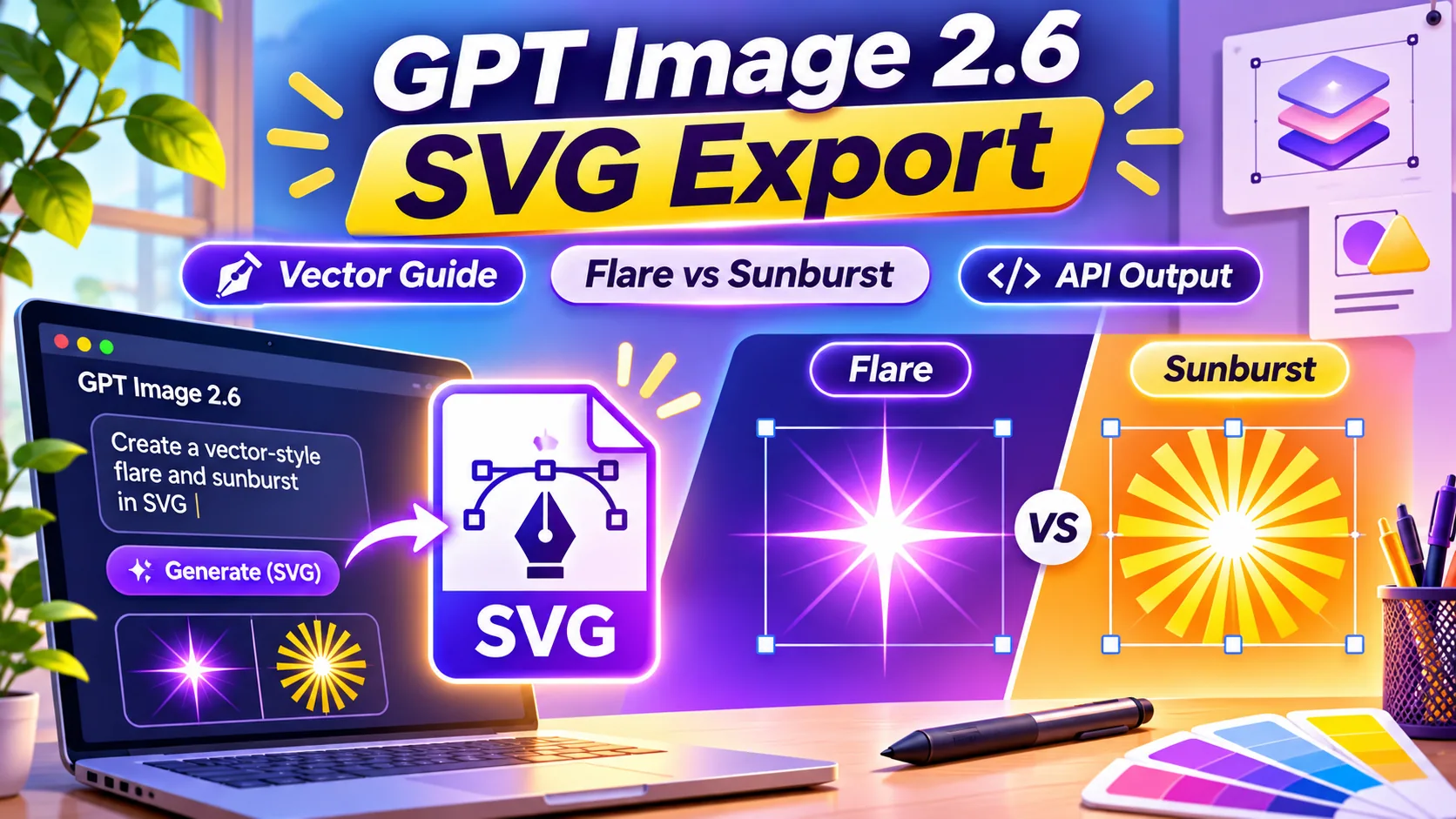
GPT Image 2.6 SVG export — GPT Image 2.6 SVG export is one of the most useful developer-facing changes from OpenAI’s November 4, 2026 image release. Alongside faster image generation and more consistent edits, GPT-Image-2.6 Sunburst and Flare support vector-format output through the Image API. That can make simple graphics easier to scale for websites and print. However, SVG support is not the same as a guarantee of perfect vectors, editable layers or unrestricted availability in every ChatGPT interface.
Editorial note: Checked November 10, 2026 against official documentation. This guide describes announced functionality and recommended tests; it is not a claim that our editors tested a paid account or completed a production deployment.
GPT Image 2.6 SVG export: key takeaways
- OpenAI introduced Images 2.6 on November 4, 2026 for ChatGPT, Codex and developer workflows.
- The API offers GPT-Image-2.6 Sunburst for detailed work and Flare for faster iteration.
- SVG output is supported through the Image API, with model access and format-specific restrictions.
- The API reference states SVG requires one image per request and does not support streaming or partial images.
- Complexity and quality are separate controls; a high-complexity setting may take longer and change elements you wanted preserved.
GPT Image 2.6 SVG export: features and limitations at a glance
| Feature | What it does | Before relying on it |
|---|---|---|
| Flare | Quick experiments and iterations | Lower latency can make early trials efficient |
| Sunburst | Detailed layouts and complex visual work | Useful when more precise compositions are needed |
| Raster image | Pixel-based artwork and photos | Quality depends on resolution |
| SVG | Scalable vector-format output | Inspect paths and file structure before delivery |
| Complexity: low | Focused small corrections | Try before increasing effort |
| Complexity: medium/high | Dense scenes or many constraints | May add latency or unwanted changes |
| SVG restriction | One result per request; no streaming | Plan sequential requests and validation |
What changed in GPT Image 2.6?
OpenAI introduced two API image models, Sunburst and Flare, in the Images 2.6 release. The company describes quicker generation and better preservation of design details across editing rounds. For designers, the more interesting change may be the ability to request SVG output from the API instead of receiving only a raster image.
SVG stands for Scalable Vector Graphics. Its strengths include flexible sizing, relatively sharp edges for suitable designs and compatibility with many website and graphics workflows. However, a generated SVG can still be complicated, heavy or hard to edit if it contains unnecessary paths.
Therefore, treat vector output as a starting artifact. Before placing it on a website, inspect readability at small sizes, remove unnecessary complexity and check that it does not include unexpected external resources.
How is SVG different from PNG and WebP?
PNG and WebP are raster formats: they store pixel-based image information and work well for photographs, rich illustrations and many website hero graphics. SVG describes shapes, paths, fills and other structured graphics that can scale without the same pixelation behavior for suitable artwork.
For a simple logo concept, an SVG may be easier to resize for a header, app icon or print mock-up. For a photorealistic background, a high-quality raster export often makes more sense and may be lighter or easier to manage.
A useful decision rule is to use vectors for clean shapes, diagrams, line art and reusable icons, while using raster formats for detailed photographic textures. The image model can help create both, but the final format should serve the design rather than lead the brief.
How to request GPT Image 2.6 SVG output: seven steps
Step 1 — Identify a vector-friendly task. A badge, simple icon, mascot outline or geometric pattern is a better first test than a complex photographic cityscape.
Step 2 — Choose the appropriate API model. OpenAI describes Flare as the faster iterative model and Sunburst as the detailed visual option. Check model access in your developer account before constructing requests.
Step 3 — Write a focused prompt with a clear subject, limited palette, background preference and intended use. Define what must remain recognizable when the artwork is scaled down.
Step 4 — In a supported Image API request, select SVG as the output format. The API reference describes using output_format=svg and permits certain SVG-specific options according to account access. Avoid assuming the ordinary image download menu automatically offers SVG.
Step 5 — Request one image. The documented SVG path requires n=1 and does not support streaming or partial image results; plan your integration around the full completed artifact.
Step 6 — Save and inspect the file in a vector viewer. Open it at favicon size and at poster size. Look for malformed shapes, excessive nodes, stray text or missing fills.
Step 7 — Validate and sanitize the SVG before embedding it into a website. Remove unsupported external references and follow the site’s content-security and upload policies.
Prompt examples for logos, icons and illustrations
Icon prompt: ‘Create a simple vector-style location pin with one central star. Use a two-color palette and a transparent background. Keep the silhouette recognizable at 24 by 24 pixels. Avoid gradients, small text and tiny decorative details.’
Badge prompt: ‘Design a modern circular award emblem with a broad outer ring and one stylized leaf. Use consistent stroke widths and simple geometric paths. Make it readable when printed at 30 mm wide.’
Website illustration prompt: ‘Create a clean flat vector concept showing a human reviewing an AI-generated document. Use six or fewer main colors, a light background, clear grouping and no tiny labels. Favor simple shapes that can be edited later.’
These are prompt templates, not screenshots from a verified output. Always check the exported file. A visually pleasing preview is not proof that the underlying SVG structure is optimized.
Sunburst versus Flare: which one should you use?
Flare is the obvious candidate for early sketching and fast variations. If you are testing six icon directions, rapid iterations may be more useful than maximum detail on the first attempt. Conversely, Sunburst may suit a chosen concept that needs a refined composition.
OpenAI’s API guide distinguishes complexity from quality. Complexity controls planning effort, while image quality controls rendering fidelity. Starting with low complexity for focused edits can limit latency, although a dense graphic may benefit from medium or high complexity.
The correct choice depends on the task and total generation cost. Test the same prompt with both models and compare export structure, visual fit, iteration time and actual billable usage rather than relying on general marketing labels.
Important SVG API restrictions and compatibility
OpenAI’s image API reference says SVG generation requires n=1 and does not support streaming, partial images, prompt rewriting or output compression. SVG-specific model settings may depend on whether the account has access to SVG model selection. Developers should follow the current reference rather than copying unsupported request fields from an unrelated image tutorial.
This matters for bulk production. An API integration that requests multiple raster variations in one call may need to create separate SVG calls. Similarly, a progress interface should show a pending result rather than promising partial vector frames that the endpoint does not return.
After the response arrives, validate its actual format, ensure the expected paths render correctly and handle errors gracefully. An empty or unsupported response is not a signal to repeatedly retry without checking the account and format constraints.
Editing a generated SVG safely
First, save the original and a copy for changes. A vector editor can help simplify overly complex paths, replace inaccurate symbols and align strokes. Work at the intended output sizes; a design that looks good at 1,000 pixels may not work as a 16-pixel icon.
Next, test accessibility and contrast. Important meaning should not depend only on color. If the illustration carries essential information, provide a meaningful alt-text description when publishing it.
Finally, sanitize SVG uploads. SVG is XML-based and can contain active or external references depending on how it is generated or edited. WordPress websites commonly restrict this format for security reasons. A vetted SVG workflow is different from uploading an arbitrary untrusted file.
Licensing, copyright and originality considerations
AI output may contain familiar shapes or brand-like motifs. Before commercial use, inspect trademarks, distinctive characters, copied logos and other third-party content. Avoid promising customers that a generated asset is automatically unique or legally protected everywhere.
Use original inputs and permitted references. Keep records of client approvals, prompt requirements and substantive manual revisions. For a production identity system, a human designer should refine the marks and ensure consistency across layouts and sizes.
For teams selling icon packs or printed assets, inspect the source files and licenses individually. A large SVG batch can spread one design error across dozens of products if there is no quality check.
When SVG export is not the best choice
If the desired result is a photograph, highly textured illustration or complex cinematic composition, raster output may be more suitable. Vector conversion can produce huge files or awkward shapes in those cases.
Also consider whether a normal design tool can produce a cleaner output with less iteration. The goal is a usable and maintainable asset, not merely the novelty of generating it with an AI model.
GPT Image 2.6 SVG export: frequently asked questions
Can ChatGPT Images 2.6 directly download SVG in the normal chat interface?
The verified launch material specifically identifies SVG export support in the API. Do not assume every ChatGPT app download menu exposes the same developer output format.
What image models support SVG export?
OpenAI’s Image API documentation lists GPT-Image-2.6 Sunburst and Flare with SVG output support under the documented account and request conditions.
Can I generate multiple SVG files in one request?
The API reference specifies n=1 for SVG output. Generate separate results in separate requests where needed.
Is SVG always better than PNG or WebP?
No. SVG works well for scalable shapes and graphics, while raster formats are often better for photography and rich textures.
Do I need to sanitize SVG before using it on WordPress?
Yes. Treat generated SVG as untrusted XML until it has been checked against your site’s security and upload policies.
GPT Image 2.6 SVG export: final recommendation
GPT Image 2.6 SVG output is useful when the job requires scalable shapes or reusable illustrations. Start with a simple design, choose Flare or Sunburst based on speed and detail, and verify the resulting vector file before deploying it in a website, print design or customer deliverable.
Official sources and further reading
Official sources: OpenAI’s November 4 Images 2.6 announcement and OpenAI Image API SVG and complexity documentation. Product features, pricing and access may change; verify current settings in the provider account before planning a production workflow.
Related educational guides on AIReviewDock.com: AI-generated image copyright guide and ChatGPT GIF generation tutorial.
Separate commercial tool reviews on AIReviewDock.online: PinPrompt Vault creative prompts review and Gamma AI creative presentation review. These products have different capabilities and should not be treated as substitutes without testing.