
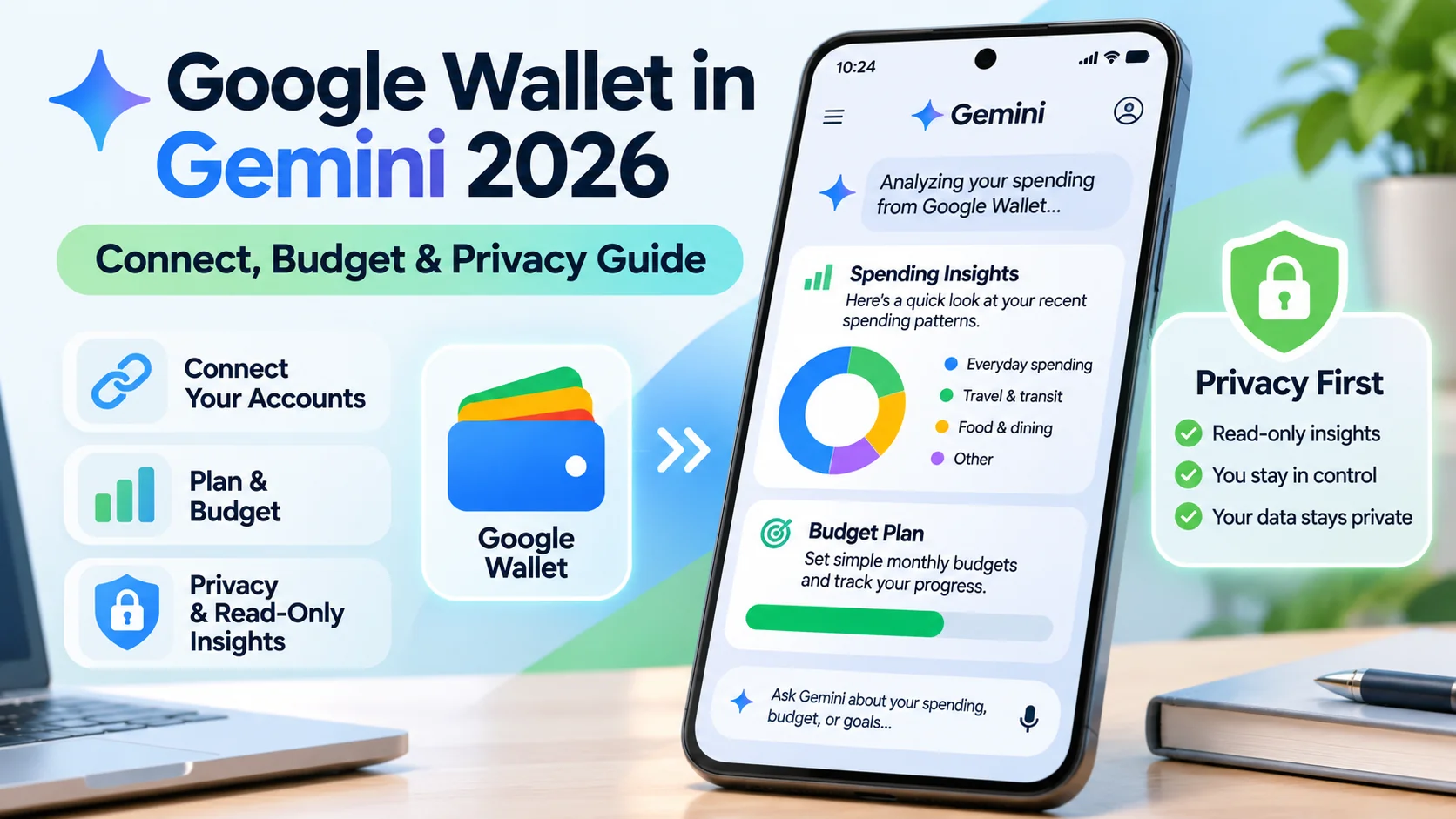
Google Wallet in Gemini: Google Wallet in Gemini became a practical new feature on November 13, 2026, when Google announced that eligible US Gemini users could connect Wallet to ask questions informed by their spending history. The connected app can help summarize transactions from linked financial accounts, identify recurring expenses and surface budgeting patterns. It is read-only for money movement, not an AI payment service. This guide covers setup, requirements, safe prompts and what you should verify before trusting any budget suggestions.
Quick Answer
The Google Wallet connected app is gradually rolling out to Gemini users in the United States who are at least 18, use a personal Google Account and have Keep Activity enabled. The feature works in English in Gemini mobile and web, not in Gems or Gemini Live. It can read eligible Wallet information for insights but cannot transfer money, make purchases or edit linked financial accounts.
At a Glance
| Announcement | November 13, 2026 |
|---|---|
| Supported region | United States, with gradual rollout |
| Account requirements | Age 18+, personal Google Account, Keep Activity on |
| Language and apps | English, Gemini web and mobile apps; not Gems or Gemini Live |
| Information used | Wallet saved information and eligible transactions, including accounts linked using services such as Plaid |
| Permitted actions | Read and summarize spending, surface rewards, support budgeting questions |
| Not permitted | No purchases, transfers, investment orders or editing/removing financial accounts through the Gemini Wallet connector |
What Does Google Wallet in Gemini Actually Do?
Google added Wallet as a connected application for Gemini’s Personal Intelligence experience. If an eligible user opts in, Gemini can answer questions using available Wallet records, such as recent spending, rewards and transactions from connected financial accounts. For example, it may help group spending by type or point out recurring subscriptions. It does not mean that Gemini can access every account in the United States by default.
Data coverage depends on what the user has actually saved or linked in Wallet and which transaction records are available. Some accounts may provide longer histories or richer descriptions than others. A missing or incomplete data connection can lead to a misleading budget, so treat AI-generated summaries as an aid to reviewing records rather than an independently verified financial statement.
Eligibility: US Accounts, Age 18 and Keep Activity
Google’s help guidance lists three basic requirements: the user is at least 18 and in the United States, signs in with a personal Google Account, and has Keep Activity switched on. Work and school Google accounts are not supported at launch. The product is rolling out gradually, so the connection may not appear for everyone even when they meet these conditions.
The Wallet connected app works in English in Gemini’s web and mobile applications. It is not available in certain Gemini experiences, including Gems and Gemini Live. Do not use unofficial region or account bypasses to expose personal financial records to a feature that is not available to your account. Wait for an official rollout instead.
Step 1: Open Gemini on Web or Mobile
Start from gemini.google.com or the official Gemini mobile app and sign in with a personal Google Account. Confirm that this is the Google Account where the Wallet information you want to use is stored. A business Workspace sign-in may lead to missing settings because the release is targeted at eligible personal accounts.
Before proceeding, decide whether the benefit of personalized budgeting justifies connecting financial records to an AI service. If you want general savings ideas without exposing actual purchases, you can ask Gemini a hypothetical budgeting question instead. The connected option is voluntary; a user should not feel obligated to enable it just to receive ordinary financial-planning explanations.
Step 2: Enable the Connected App When Offered
Google explains that you can ask a Wallet-related question and, when eligible, follow the on-screen connection prompt. You can also manage Personal Intelligence and Connected Apps in Gemini settings. Mention Google Wallet explicitly or use @Google Wallet in a prompt so the assistant knows which connected source you intend to use.
If a connection prompt does not appear, check the account, age, region, language and Keep Activity setting. Do not paste banking passwords, account credentials or security codes into the chat to compensate for a missing integration. Use the official Google account settings and authorized connection interfaces only.
Step 3: Optionally Link Financial Accounts Through Wallet
Google says users can link supported financial accounts to Wallet using a service such as Plaid to enable richer transaction insights. Whether to take this step is a separate privacy choice from simply using a saved pass or card in Wallet. Only proceed if you understand which institutions and data categories are shared and how to disconnect them.
Read the linking service’s disclosures carefully and avoid treating a bank connection as an unlimited promise that all balances and categories will appear in Gemini. Some accounts may not support a given connection or may require reauthorization. Keep a record of the accounts you chose to link so you can identify an unexpected source in a later AI-generated summary.
Step 4: Ask Clear Spending and Budget Questions
Start with a narrow question such as ‘Show my spending on groceries last month’ or ‘Which subscriptions increased in cost this year?’ A focused period and category make it easier to validate the summary against official transactions. Google also describes prompts for holiday budgeting and reviewing spending over a quarter. Ask the assistant to explain how it grouped the charges rather than providing only one total.
Useful outputs may include a spending overview, a visual chart or a list of potentially recurring charges. But a merchant’s name can vary across transactions, and an unusual bank category might be wrong. Before changing your budget, check the underlying transaction dates and amounts. The assistant should not be treated as a licensed financial adviser or as a substitute for checking the statement directly.
Step 5: Check Calculations Against the Source Records
Choose three representative transactions and compare them with your Wallet or issuer records. Confirm whether refunds and canceled purchases are subtracted from totals. If a spending chart looks inconsistent, ask what date range and category rules were used. A small error in categorization can distort a monthly trend, especially when large purchases are mixed with recurring daily costs.
Be especially cautious with money-saving targets. A chart showing a possible reduction in spending is not proof that a particular goal is affordable. Unexpected bills, debt payments, taxes and account restrictions may not be represented in the connected data. Use AI suggestions to create questions for review rather than allowing a model to make unmonitored financial commitments.
Step 6: Review Connected Apps and Personal Intelligence Controls
Gemini provides controls for the Google apps used in Personal Intelligence. You can review or disable Google Wallet in Connected Apps, and you can unlink financial accounts separately within Wallet’s account-management flow. These are different actions: turning off a Gemini connection does not necessarily delete an external bank link.
Check how Keep Activity affects your use of Gemini. Google requires it for this connected feature, which matters to people who prefer not to retain activity records. Before connecting, review Google’s current privacy and data-handling explanations for Personalized Intelligence and connected apps. If your privacy needs are stricter than those settings allow, do not enable the feature.
What Gemini Can and Cannot Do With Wallet
Google’s help documentation explicitly says the Wallet connected app cannot make transactions using Wallet payment methods and cannot update or delete connected financial accounts. You must use Wallet’s own settings for account changes. This distinction prevents the common misunderstanding that an AI conversation can freely move or invest your money.
Gemini can still make mistakes when it summarizes or interprets data. It can help you ask better questions about your spending, but it does not replace an accurate banking ledger, a detailed tax record or professional advice. Do not use an AI-generated description of a card benefit as proof that a particular transaction will qualify; verify the current issuer conditions.
A Safe Monthly Budget Review Workflow
At the beginning of a month, collect the account statements you intend to review and verify that the appropriate date range is available. Ask for a breakdown of essential bills, discretionary purchases and subscriptions. Compare large charges with your own records and manually correct any obvious categories. Mark unusual transactions for separate attention instead of sharing sensitive card or identity information in follow-up prompts.
Next, create a simple action plan that names one or two expenses you can realistically reduce. Examples include checking an unused subscription or setting a weekly discretionary spending target. Review progress later with the actual statement, not only with a chart generated by Gemini. The goal is a better understanding of spending; the connected app itself neither cancels a service nor moves funds between accounts.
Google Wallet in Gemini Versus ChatGPT Wallet
Despite the similar names, these products have different launch purposes. Google Wallet in Gemini is designed for read-only personal finance insights. ChatGPT Wallet, announced by OpenAI, is designed for eligible user-approved agent purchases. The availability, approval process, connected data and merchant experience are therefore different.
If you want to understand a category of recurring expenses, a read-only transaction review may be the relevant feature. If you want an agent to help check out at a compatible merchant, that is a different payment workflow with different eligibility and security checks. Do not assume that enabling one service creates payment authority in the other.
Troubleshooting Common Google Wallet Connection Problems
If you see no Wallet option, check whether you are using a supported personal account in the United States, are at least 18, have Keep Activity on and use a supported Gemini interface. The rollout itself can be gradual. If a bank connection is incomplete, review Wallet’s linked-account settings and the linking service’s status instead of repeatedly entering credentials through an unverified site.
If summaries seem incomplete, check the date range and actual source data. A recurring subscription may be paid from an account that was never linked. Missing data should be described as missing, not as proof that a charge was canceled. If the privacy implications are unclear or the assistant’s answers cannot be reconciled to records, disconnect Wallet while you investigate.
Related Reading and Verified Sources
Useful background: Personal AI assistant safety guide and AI tool privacy checklist.
Related product-review context on our separate affiliate site: ReferralNow rewards tool review and Click Action AI browser agent review.
Official references: Google November 2026 Wallet announcement and Google’s official Gemini Wallet help guide. These are the primary source documents checked November 16, 2026; features and eligibility may change.
ChatGPT offers a comparable wallet flow with its own eligibility and security steps. Our ChatGPT wallet setup guide walks through what to check before connecting a payment method.
Frequently Asked Questions
Can Gemini pay with my Google Wallet?
No. The Wallet connected app is read-only for this feature and cannot make transactions with your payment methods.
Is Google Wallet in Gemini available outside the US?
Google’s November 2026 rollout is limited to eligible US users, with gradual availability.
Do I need a paid Gemini subscription?
Google announced the connection for eligible Gemini app users in the US; account, age and region requirements still apply.
Why is Google Wallet not showing in Gemini?
Check the gradual rollout, personal account type, English support, age, US region and Keep Activity setting.
Can Gemini find subscriptions I forgot about?
It can analyze recurring charges from available linked data, but results must be verified against your statements.
Can I disconnect it?
Yes. You can disconnect the app in Gemini Connected Apps and manage linked financial accounts separately in Wallet settings.
Final Takeaway
This guide is an independent explanatory resource compiled from official documentation. It is not a claim of having tested every paid tier or private account feature. Check current plan, region and privacy rules before enabling a service, and independently verify any financial or business result.