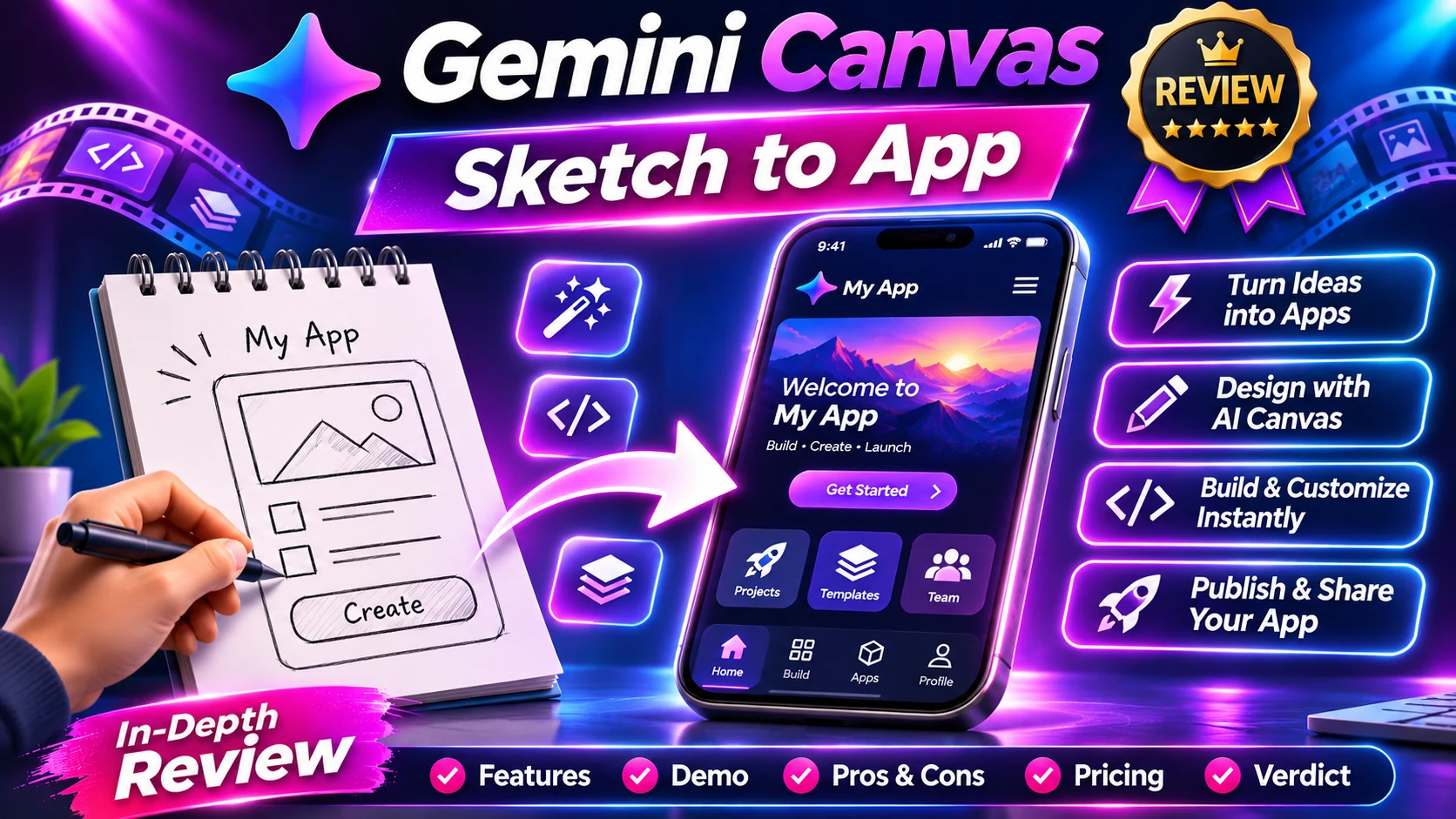
Gemini Canvas sketch to app is a visual coding workflow Google highlighted on November 5, 2026. Take a photo of a hand-drawn app idea, upload it to Gemini, select Canvas and ask for code. The preview then lets you inspect the interactive result and request changes. This is a practical new route from a drawing to a prototype, but a working preview does not automatically make an app secure, tested or ready to sell.
Research note: Official vendor documentation reviewed November 7, 2026. This is an independently written educational guide, not a hands-on benchmark. Features and account entitlements can change.
Gemini Canvas sketch to app: quick facts
- Upload a clear picture of your sketch to Gemini.
- Select Canvas and ask Gemini to code the app.
- Test the generated interaction in its preview before trusting it.
- A prototype still needs accessibility, data-handling, security and publishing checks.
Gemini Canvas sketch to app: key details at a glance
| Stage | What you provide or check | Expected result |
|---|---|---|
| Sketch | Labeled boxes, screens and button purpose | A clearer input for visual interpretation |
| Upload | A readable photo without private information | Gemini can inspect layout and labels |
| Canvas | An explicit request to build the interface | Editable preview and generated code |
| Interaction | A small test list for buttons and inputs | Evidence that the design works beyond appearance |
| Iteration | One specific change at a time | Easier debugging and version comparison |
| Deployment | Hosting, permissions, secrets and user data | A separate production-readiness decision |
What is Gemini Canvas sketch to app?
On November 5 Google published a concise method for converting a quick drawing into a live interactive app. In practice, the described flow is simple: photograph a mock-up or game board, upload it to Gemini, select Canvas and ask ‘Can you code this app?’ Next, the AI interprets the visual and generates code, while Canvas displays a preview that you can refine with follow-up instructions.
The useful distinction is between a UI prototype and a complete production system. For example, an app can look plausible while lacking persistent storage, authentication, error handling, accessibility and reliable performance. Therefore, none of those should be assumed from a screenshot or a live preview alone.
This workflow can be valuable for students, educators, founders and designers who need to communicate an idea quickly. However, it is not a substitute for reviewing generated code when the app will serve real customers or hold personal data.
How to prepare a sketch that AI can understand
Start with one screen rather than a ten-page application. Next, use dark, legible labels for the app title, input fields, buttons and key information areas. Finally, place arrows between screens if you need navigation and add a short note explaining what should happen after each click.
Make the information hierarchy explicit. For a simple expense tracker, draw a heading, amount input, category dropdown, Add Expense button and list of transactions. Similarly, for a game, draw the board, score display, restart control and win condition. A beautiful illustration is less important than an unambiguous behavior description.
Avoid placing passwords, customer lists, addresses or private screenshots in your reference photo. Instead, test with generic values until you know the applicable product privacy rules.
How to turn a drawing into an app with Gemini Canvas: seven steps
Step 1: Draw your first screen on paper or a tablet. Include at least one meaningful interaction such as ‘Add item’ or ‘Start game.’ Mark which elements are labels and which are controls.
Step 2: Photograph or export the sketch clearly. Crop away irrelevant notes and rotate the image so buttons and text are legible.
Step 3: Open Gemini in a supported interface, upload your sketch and select Canvas. Check that Canvas is available in your account; product rollout and workspace policies can affect options.
Step 4: Ask Gemini to create an interactive application from the image and to describe any ambiguous assumptions it makes. Tell it not to add payments, external connections or user accounts without asking.
Step 5: Inspect the preview. Do not stop at the initial appearance. Click every button, submit empty forms, enter unusual text and check whether each action produces the expected response.
Step 6: Request precise revisions: ‘Make the Add button disabled until an amount is entered’ is more testable than ‘make it professional.’ Repeat the same failed test after the code change.
Step 7: Save a copy of the generated code and create a short checklist before publishing. Confirm hosting, security, storage and accessibility separately.
Example: a habit tracker from a paper layout
Imagine a handwritten sketch with a title, seven weekday circles, a habit-name field and a ‘Mark Done’ button. Your initial request could be: ‘Turn the attached sketch into a responsive habit tracker. Keep everything local in the browser for this prototype. Allow users to add a habit, mark today as complete and reset the current week. Do not require sign-in or third-party integrations.’
After generation, test a blank habit, a long habit name, duplicate entries and behavior on a small phone screen. Next, check whether the reset button really clears the intended week and whether a deleted item reappears after refresh. If the app does not save after refresh, decide whether that is acceptable or whether local storage or a database is required.
For a classroom demo, a simple self-contained app may be sufficient. By contrast, for a paid productivity service, data backup, accounts, privacy and recoverability become part of the real scope.
What Gemini Canvas can miss
Generated code can include buttons that look clickable but do nothing, forms that accept invalid values, missing keyboard focus, inaccessible contrast or interactions that fail on mobile. Therefore, verify the behavior independently. Use a test matrix with columns for action, expected outcome, actual result and fix required.
A complete app may also need user authentication, database permissions, server-side validation, logging, rate limits, deployment controls and clear data retention. However, asking Gemini to ‘make it secure’ is not a substitute for specifying these requirements and inspecting the implementation.
Watch for hallucinated integrations: a mock dashboard might display a fictional live number, a fake API response or a placeholder database connection. As a result, label such screens as demos rather than presenting sample content as actual business data.
Prototype, no-code site or production app: which should you choose?
A Canvas prototype is useful when you need to test whether an idea feels intuitive. By comparison, a no-code site builder can be more suitable for mostly static pages or basic marketing funnels. In contrast, a production application demands tested logic, infrastructure and lifecycle support. These are related but separate phases.
For a pitch, focus first on a working user journey and a short demo. When real users will rely on the app, add structured testing and dependable infrastructure. If a client asks whether the preview is already ‘live,’ explain where it runs and what data it can really save.
Privacy, copyright and sharing checklist
Use original or licensed reference material and avoid copying a proprietary app’s visual identity too closely. Likewise, keep private customer data out of sample screenshots. If you share generated code, review dependencies and confirm the usage rights for any included assets.
Before deploying an app that holds user data, confirm secure credential handling, input validation, storage policies, accessibility and a process for fixing vulnerabilities. Therefore, treat publishing as a separate deliberate action after reviewing the preview.
Gemini Canvas sketch to app: frequently asked questions
Can Gemini create an app from a photo?
Google’s November 5, 2026 demonstration shows uploading a photographed sketch, selecting Canvas and requesting generated code.
Is a Gemini Canvas prototype a finished mobile app?
Not necessarily. A live interactive preview is different from a production iOS or Android app with accounts, updates and a tested backend.
Do I need to know programming?
You can prototype without writing the initial code, but understanding requirements and testing behavior remains important.
Can I use the result for a client?
Evaluate the generated code, licenses, privacy and deployment requirements before handing a prototype to a real client.
What should I test first?
Try all visible controls, invalid inputs, mobile layout, keyboard access, persistence and basic error messages.
Gemini Canvas sketch to app: final recommendation
Choose the smallest real test that answers your question, check availability and current terms in the official source, and review the result before committing money or sharing personal data. This Gemini Canvas sketch to app guide will need updating if the vendor changes its availability, pricing or documented limitations.
Sources and further reading
Official references: Google’s sketch-to-app announcement and Google’s wider Gemini product context. These describe the vendor’s announced product capabilities and limitations; we do not present vendor demos as independent testing.
Related educational guides on AIReviewDock.com: no-code AI agent guide and Gemini Decisions API tutorial, which examines a narrower model-based decision workflow. Check the capabilities, code examples and access rules for each separate approach.
For a separate look at commercially marketed tools, see AIReviewDock.online: RoboTek AI app builder review and ViralVault AI website builder checks. These reviews are distinct from this educational article.