
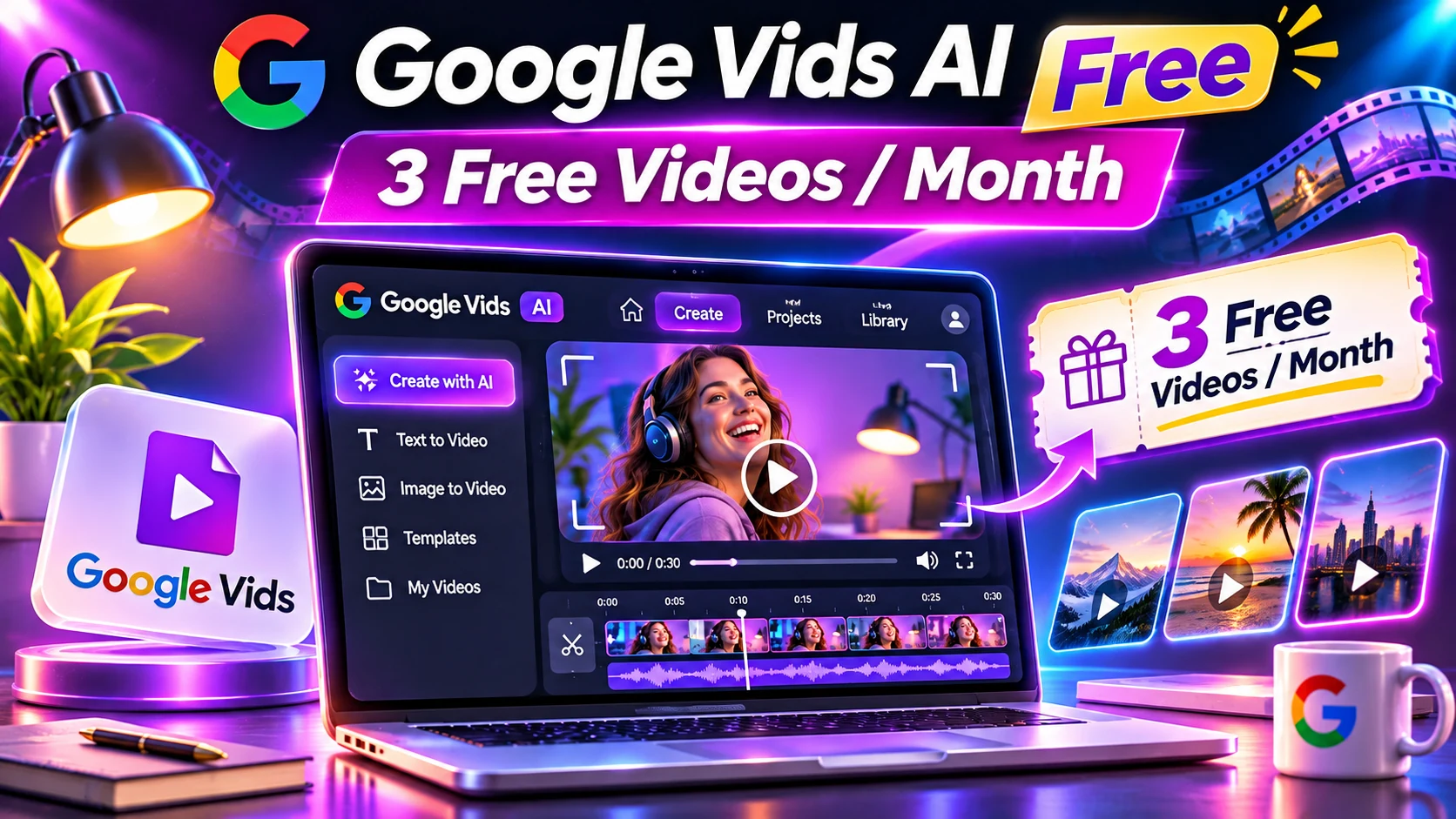
Google Vids AI free access changed on November 5, 2026. Google says anyone with a Google account or Google Workspace subscription can generate up to three 15-second videos per month without an additional charge in Vids, using Gemini Omni 1.2 Flash. This beginner-friendly tutorial explains how to choose a useful scene, prepare your inputs, verify the monthly allowance and review a completed video. The three-video offer is a stated monthly allowance, not a promise of unlimited free generation.
Research note: Official vendor documentation reviewed November 7, 2026. This is an independently written educational guide, not a hands-on benchmark. Features and account entitlements can change.
Google Vids AI free: quick facts
- Google announced up to three AI-generated 15-second videos per month at no additional cost in Vids.
- A Google account or qualifying Google Workspace access can be used to try the feature.
- The new Gemini Omni 1.2 Flash model improves reference consistency and spoken narration.
- The free Vids allowance should not be confused with unlimited Gemini API access.
Google Vids AI free: key details at a glance
| Question | Google’s November 2026 description | What to do |
|---|---|---|
| Who can try it? | Users with Google accounts or Workspace subscriptions | Sign in and check your Vids interface |
| Monthly free allowance | Up to 3 generated AI videos | Plan three ideas before using the allowance |
| Maximum output duration | 15 seconds per generation | Write a very short beat sheet |
| Generation model | Gemini Omni 1.2 Flash | Use precise prompts and references |
| Image references | Supported in advertised workflow | Verify identity, brand color and subject details |
| Remaining usage | Can depend on account state | Check current product usage display |
What is Google Vids, and what became free?
Google Vids is Google’s video creation and editing tool within its broader productivity ecosystem. Unlike a pure text-to-video model API, the application gives everyday users a workspace for visual storytelling. On November 5, Google announced that the newer Gemini Omni 1.2 Flash generator would be available in Vids with up to three 15-second generated videos per month at no extra cost.
That statement does not mean the entire Google Vids product, every AI capability, storage amount, paid Google Workspace feature or generation setting has become unlimited. Instead, it refers to a specific monthly video generation allowance. Also, availability and interface changes may vary by account and rollout; always inspect the offer shown to your signed-in account.
Google promotes short product introductions, image-to-video stories, social teasers and educational explanations as natural use cases. However, none of those examples guarantees factual accuracy or that a generated clip is ready for publication without editing.
Google Vids free plan and its important limits
The simplest way to understand this free benefit is a budget of three tries per month. For example, if a prompt produces a clip that you dislike, don’t assume you can regenerate unlimited versions without affecting your allowance. Therefore, confirm what counts as one generation or edit inside the interface before spending all three attempts.
Because 15 seconds is short, choose a format that makes sense in a single visual idea. A useful educational clip can show one process, one object or one before-and-after concept. By contrast, a complex product demo with prices, claims, fine print and multiple customer testimonials usually needs more controlled editing outside the generation feature.
Google says natural speech narration and more consistent reference imagery are improvements in Gemini Omni 1.2. Nevertheless, generated labels, faces, motion and object details can still drift. For that reason, keep a fact-check checklist for any client or commercial use.
How to make a Google Vids AI video in seven steps
Step 1 — Open the official Google Vids product at vids.new and sign in. Confirm that AI generation is visible on your account and that the current free allowance is displayed. Do not assume every Google account has exactly the same rollout UI.
Step 2 — Select one small objective: for example, a 15-second animated explanation of the water cycle for a classroom, or a neutral product teaser using a photograph you own. Keep personal data and sensitive client assets out of your first test.
Step 3 — Write a single clear prompt. Describe the subject, action, visual style, desired aspect ratio and intended duration. Good prompts usually specify what must stay constant and what must never appear.
Step 4 — Add an optional reference image if the interface supports it. Use your own image or something properly licensed. If the input shows a real person, check consent and the terms for generating a realistic depiction.
Step 5 — Review the result for motion, visual consistency and speech. Watch the clip with audio and without audio. For example, unexpected text, unnatural hands or mismatched product color can undermine an otherwise polished result.
Step 6 — Decide whether a revision is worth consuming another attempt. Next, keep the correction short and targeted. For exact text or a legal disclaimer, an ordinary video editor may offer more reliable control.
Step 7 — Export or continue editing as the interface permits. Recheck quality, captions, rights and any disclosure obligations before sharing.
Three examples for a first free generation
Example A: School science. ‘Generate a 15-second landscape animation showing three stages of rainwater moving through soil, collecting in a river and evaporating under sunshine. Use a simple flat illustration style. No invented statistics.’
Example B: Local business. ‘Make a 12-second vertical teaser showing a ceramic coffee cup on a cafe table. Begin with a wide shot, transition to a slow close-up and end with a clean product-focused frame. Match the attached reference photo; no pricing.’
Example C: Travel memory. ‘Animate this licensed landscape photo into a gentle 10-second camera push with natural foliage movement. Preserve the original landmark, horizon and color palette. No new people or buildings.’
Prompts are starter templates, not guaranteed output examples. For instance, a sensible first test is a concept you can verify visually without needing a complex external fact-check.
Google Vids vs Gemini app vs Gemini API
These are related but not identical experiences. The Gemini API is intended for development and has a separate published 720p generation rate of $0.07 per second. Meanwhile, the Gemini app offers features under account-specific plans, and Google describes Omni 1.2 Flash video creation as rolling out to AI Ultra subscribers. By contrast, Vids’ free three-video monthly allowance is a distinct product claim.
For small projects that need only a few clips, Vids may be the simplest starting point. By contrast, teams generating hundreds of clips should compare API pricing and rate limits. When precise cuts from existing footage matter, a conventional video editor may be the better option.
Is it worth using for marketing and YouTube Shorts?
Short AI visuals can help illustrate a topic, but YouTube and advertising platforms still have rules about misleading content, reused footage, synthetic media and copyrighted material. Therefore, verify current requirements on the destination platform, especially if your clip depicts an identifiable person or factual event.
The key performance measure is not whether a clip was made with AI; it is whether viewers understand the message and whether the facts are correct. For a promotional test, review the final file, compare it with your existing assets and assess audience response without assuming the model automatically increases views.
Seven common problems and practical fixes
When the subject’s shape changes, provide a clearer reference and ask the model to preserve its defining details. Likewise, shorten an overly long narration to one sentence. For detailed pricing information, add verified text later in a regular editor rather than expecting AI to spell every number correctly.
For account or allowance errors, check the product’s current plan details before attempting another generation. Similarly, choose the required aspect ratio in advance if the final export has the wrong shape. When a clip feels awkward, simplify the scene instead of adding unrelated action.
For privacy-sensitive work, avoid uploading client names, private screens or identification documents until your organization has reviewed the application’s data policies.
Google Vids AI free: frequently asked questions
How many free videos can I make in Google Vids?
Google’s November 5 announcement says up to three AI-generated 15-second videos per month at no extra cost for eligible Google-account or Workspace users.
Do I need Google AI Ultra?
The Vids announcement describes a broad Google-account/Workspace allowance. Gemini app rollout details differ, so don’t confuse the two.
Can Google Vids generate longer than 15 seconds?
The new Omni 1.2 Flash native generation limit is 15 seconds per clip. Editing longer projects is a separate question from a single generated clip.
Is this the same as the Gemini API free tier?
No. Google’s API publication states a separate 720p per-second price for the model.
Can I monetize the results?
Commercial use depends on your inputs, product terms and publishing platform rules. A generated file alone does not guarantee rights to third-party material.
Google Vids AI free: final recommendation
Choose the smallest real test that answers your question, check availability and current terms in the official source, and review the result before committing money or sharing personal data. This Google Vids AI free guide will need updating if the vendor changes its availability, pricing or documented limitations.
Sources and further reading
Official references: Google’s free Vids allowance announcement and official Gemini Omni 1.2 model details. These describe the vendor’s announced product capabilities and limitations; we do not present vendor demos as independent testing.
Related educational guides on AIReviewDock.com: AI video ads guide and YouTube AI disclosure rules.
For a separate look at commercially marketed tools, see AIReviewDock.online: Pictory AI review and VideoHub AI buyer guide. These reviews are distinct from this educational article.