
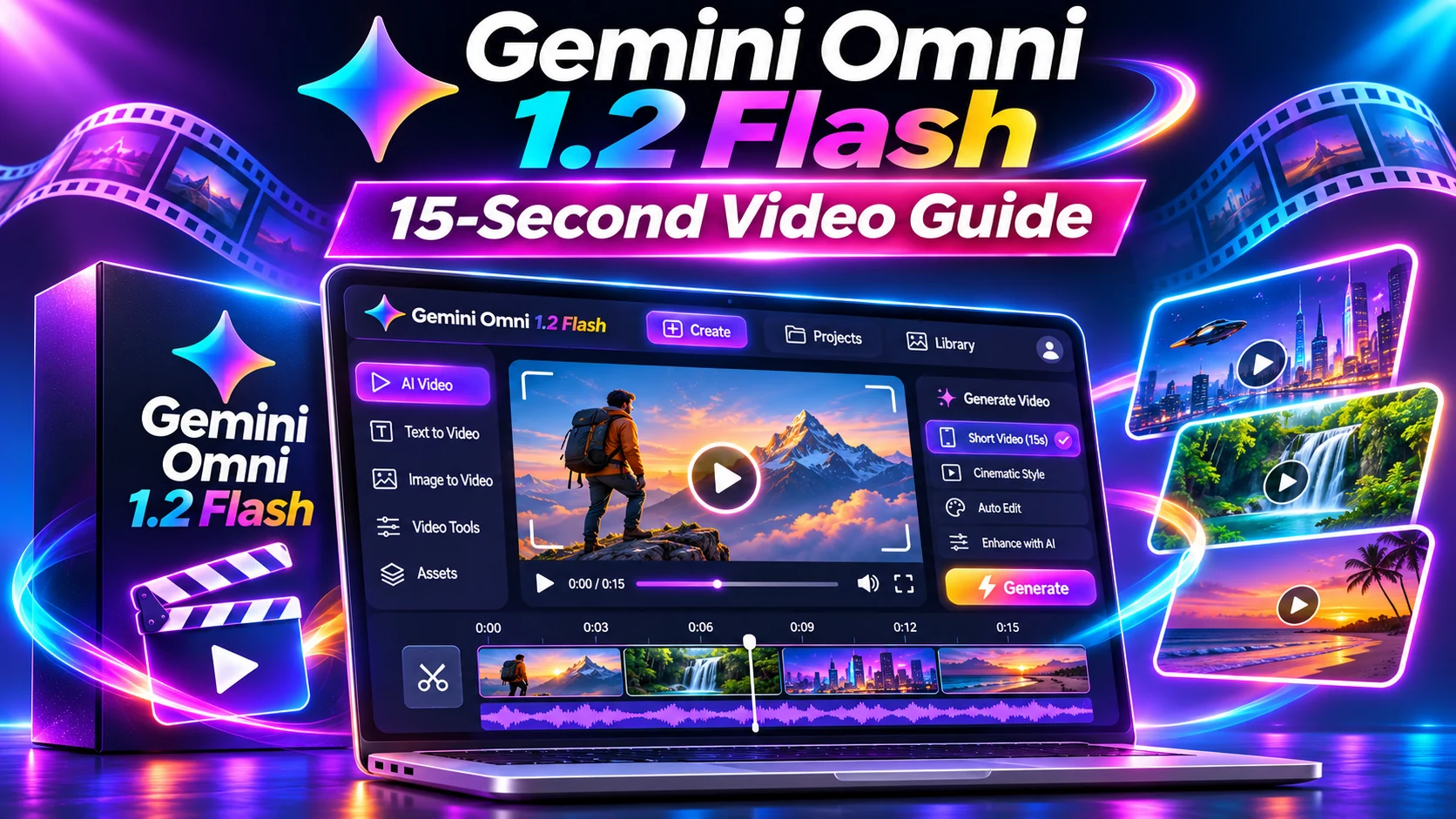
Gemini Omni 1.2 Flash is Google’s November 5, 2026 video update, with clips up to 15 seconds, iterative editing through follow-up prompts, and a published 720p rate of $0.07 per second. This guide explains what actually changed, how to plan a short video, where pricing applies, and what creators should verify before using it for ads or client work. It is based on official Google documentation, not a claim that we independently benchmarked the model.
Research note: Official vendor documentation reviewed November 7, 2026. This is an independently written educational guide, not a hands-on benchmark. Features and account entitlements can change.
Gemini Omni 1.2 Flash: quick facts
- The update expands native clips to 15 seconds rather than the earlier 10-second ceiling.
- Google advertises 720p generation at $0.07 per second, a 30% reduction from Omni 1.1.
- You can ask for adjustments to a clip instead of beginning a new generation, subject to product access and workflow.
- Availability differs among Gemini API, Flow, Gemini app, Google Vids and Google Ads.
Gemini Omni 1.2 Flash: key details at a glance
| Feature | Documented information | Why it matters |
|---|---|---|
| Native duration | 3–15 seconds in one-second increments | Plan a complete micro-story rather than stitching many tiny clips |
| Base API rate | $0.07 per generated second at 720p | A 15-second example is $1.05 before any extra costs or retries |
| Editing | Multi-turn conversational revisions | Change scenes, backgrounds, lighting or aspect ratio |
| Reference inputs | Images, short motion and audio cues | Better control of characters, products and brand details |
| Export workflow | Draft low resolution, upscale selected results | Avoid processing the highest-cost version before approval |
| Provenance | Google says outputs include SynthID | Account for AI-content disclosure and authenticity policies |
What Gemini Omni 1.2 Flash actually adds
Google describes the release as generally available through the Gemini API and Gemini for business. In other words, it is a video generation and editing model, not simply an image-to-video button. The model can preserve visual elements from reference assets while changing a scene’s motion, environment or composition. However, different Google products expose different controls, so a feature announced for the model may not appear identically inside every consumer interface.
The ability to edit a clip conversationally is more useful than a one-shot demo suggests. Suppose a bakery wants a product announcement for two audiences. A creator can prepare the base scene, inspect how the logo and packaging look, request one background variation and change the crop for a vertical placement. Even so, these steps still require human review for spelling, hand movements, logo fidelity and misleading product details.
Google also highlights more natural multi-speaker dialogue and camera movement. However, these are advertised improvements, not guarantees. Fast sports sequences, abrupt script changes and complex physics remain areas that Google says need work. A transparent workflow begins with a low-risk test, not a promise of flawless realism.
Gemini Omni 1.2 Flash pricing: how much can a 15-second video cost?
The published generation rate is $0.07 per second for 720p. For example, multiplying 15 seconds by that rate gives a simple $1.05 example for one complete 15-second output. A 10-second clip at the same published rate would be $0.70. Still, these examples are arithmetic from Google’s stated unit price; they are not a checkout quote for every resolution, model setting, product plan or enterprise contract.
The total project cost may increase when you generate multiple candidates, iterate on edits, upscale, store assets or use other provider services. API billing and consumer subscription entitlements are different. For example, Google Vids’ free monthly generation allowance does not imply the Gemini API is free. Therefore, build an estimate using your target output count, seconds per draft, expected failed generations and revision policy.
How to create a useful 15-second AI video: six steps
1. Write a one-sentence objective and audience. For instance, a strong goal is ‘Show the new café drink in three shots and end with a factual invitation’; a weak goal is ‘make a viral ad.’ Avoid earnings and performance promises.
2. Prepare accurate references. Use product photos you own or have permission to reuse, and note the non-negotiable colors, label text and physical details. Reference strength can help but does not remove the need to review every frame.
3. Divide 15 seconds into a clear beat sheet: first three seconds for a hook, next eight to ten for the demonstration, and the remaining time for a useful conclusion. For narrations, make sure spoken wording fits the available duration.
4. Start with a production prompt identifying shot sequence, camera behavior, subject, background, aspect ratio, audio needs and prohibitions. Keep instructions concrete: ‘one continuous close-up, daylight, white background, no on-screen pricing.’
5. Review the low-resolution draft and make one change at a time. Ask for a different background, steadier camera or cleaner crop; compare the output against the first version instead of assuming every edit improved it.
6. Export the final approved version and manually verify speech, facts, rights, lettering and brand accuracy. Finally, add AI disclosure when the destination platform requires it.
Prompts you can adapt
Starter concept: ‘Create a 12-second portrait-format demonstration of a ceramic mug on a neutral counter. Begin with a slow push-in, then show the mug rotating, then a close view of the handle. Match the attached photograph. No extra text or fabricated logos.’
Revision: ‘Keep the same mug and camera path. Replace the background with a simple warm kitchen. Preserve its color, shape, handle position and reflections. Do not introduce new objects.’
A second revision should address only what failed on inspection: ‘The mug handle changes shape at second five; preserve its geometry throughout.’ Specific corrections create a more useful testing record than vague requests to make a clip ‘better.’
Gemini Omni vs a standard video editor
Traditional editing tools manipulate existing footage precisely; generative video models synthesize or transform visual material. Although a generator can explore ideas without filming every scene, it may struggle with strict factual accuracy. For that reason, a conventional editor remains useful for exact typography, compliance labels, licensed music, subtitles and precise timing.
For a team, use Gemini Omni as a concept and asset-creation layer and an editor as the quality-control layer. However, if a product image must be physically exact, preserving source footage may be more reliable than asking AI to reconstruct it. Test both methods on one small campaign before deciding.
Commercial use, privacy and publishing checks
Confirm the terms for the specific Google service you use. An API customer, a Google Vids user and a Gemini app subscriber may have different access and billing rules. Therefore, do not upload client contracts, identifiable customers or confidential product designs without checking the privacy and data handling policy relevant to that interface.
Google says generated videos carry a SynthID watermark. Nevertheless, invisible provenance markers are not a replacement for complying with platform disclosures or avoiding false claims. Where people, events or products look real, consider a clear audience-facing label describing that generative AI was involved.
Measure useful outputs, not just generation counts. Instead, track which attempts were rejected, why they failed, how many seconds of acceptable footage you received, and how often a human had to intervene.
Who should use Gemini Omni 1.2 Flash?
It may help small businesses prototyping promotional concepts, social teams making short brand variants, educators illustrating a brief concept, and developers integrating video generation into a larger system. A filmmaker who needs exact repeated camera positions and long continuity will still want robust quality controls.
Try one contained test before committing recurring budget. For example, make a single video with two or three fixed requirements and document whether the tool meets them. This provides evidence that a polished launch reel cannot supply.
Gemini Omni 1.2 Flash: frequently asked questions
Is Gemini Omni 1.2 Flash free?
Google offers access through several products, but the API has a published per-second price. A limited Google Vids free allowance is separate from API billing.
What is the maximum video length?
The official November 2026 update states native generation and editing from 3 to 15 seconds, with one-second increments.
Can it edit a video using another prompt?
Google advertises multi-turn conversational editing for changing elements such as background, lighting and aspect ratio. Review the results manually.
Does $0.07 per second cover every expense?
No. It is a published 720p unit rate; additional generation attempts, upgrades or other services can change your actual bill.
Can I use it for marketing?
It is positioned for businesses and creators, but specific commercial rights and disclosure requirements depend on your account, media and destination platform.
Gemini Omni 1.2 Flash: final recommendation
Choose the smallest real test that answers your question, check availability and current terms in the official source, and review the result before committing money or sharing personal data. This Gemini Omni 1.2 Flash guide will need updating if the vendor changes its availability, pricing or documented limitations.
Sources and further reading
Official references: Google’s Gemini Omni 1.2 Flash announcement and Google Vids availability and free allowance. These describe the vendor’s announced product capabilities and limitations; we do not present vendor demos as independent testing.
Related educational guides on AIReviewDock.com: AI video credits and hidden costs and AI ad generator workflow.
For a separate look at commercially marketed tools, see AIReviewDock.online: Pictory AI practical review and RocketVideosAI buyer checks. These reviews are distinct from this educational article.