
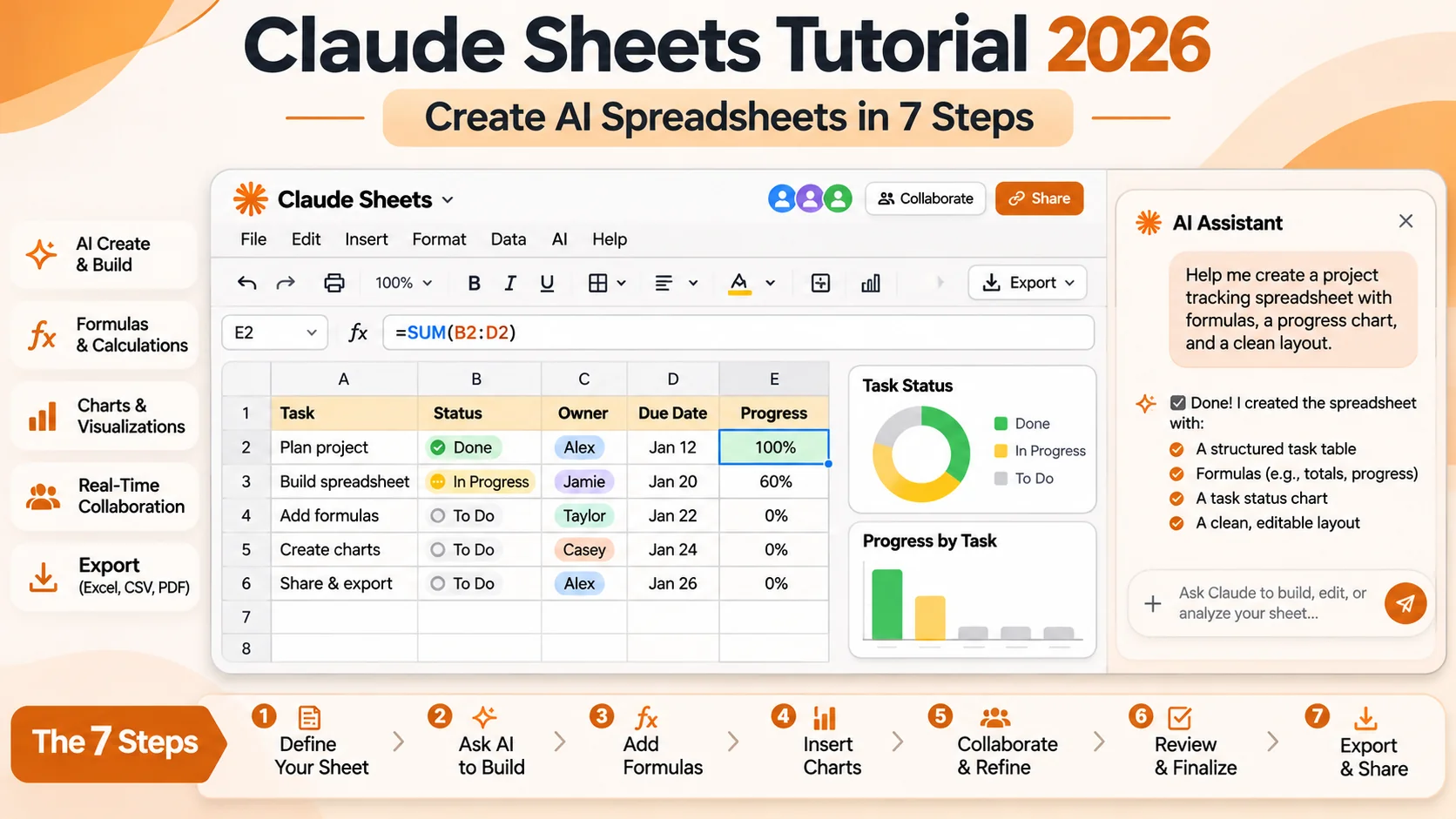
Claude Sheets tutorial: Claude Sheets tutorial searches are timely because Anthropic launched Claude Sheets in beta on November 10, 2026. Sheets is a spreadsheet built inside Claude: instead of asking an assistant to describe a budget or tracker, you can create a working, editable artifact with rows, formulas, formatting and charts. Claude can edit cells alongside you and your teammates. The feature targets everyday planning and reporting rather than replacing all the capabilities of Excel or a database. This guide explains the setup, practical prompts, import and export, common errors and important beta limitations.
Quick Answer
Claude Sheets is available on eligible paid Claude plans including Pro, Max, Ultra, Team and Enterprise, subject to organization settings. Ask Claude to build a sheet in chat or select Sheets under Artifacts. It supports up to 100,000 cells, 144 spreadsheet functions, and XLSX/CSV exports. It does not yet provide pivot tables, macros, Power Query, live app-data connections or editable mobile sheets.
At a Glance
| Release | November 10, 2026, beta |
|---|---|
| Plan availability | Pro, Max, Ultra, Team, Enterprise; not a feature promised to Free users |
| Ways to start | Prompt in a Claude chat or create from Artifacts > Sheets |
| Live editing | Users and Claude edit the same spreadsheet; version history can restore changes |
| Supported import/export | CSV, Excel, Google Sheets import; XLSX and CSV export |
| Size and function limits | Up to 100,000 cells; 144 spreadsheet functions |
| Missing at launch | Pivot tables, VBA/macros, Power Query, DAX, protected ranges, filter views, multi-column sort and PDF export |
Claude Sheets Tutorial: What It Does and Who Needs It
Claude Sheets is an artifact type within the Claude application, not merely a prompt that produces a Markdown table. You can ask for a project tracker, expense worksheet, content calendar or sales forecast and receive editable rows and columns. Claude can populate formulas, add tabs, apply formatting and build charts from the sheet’s own data. You can then ask for a modification while watching edits appear.
The important difference is that the working data stays in the same place as the conversation. A team can inspect a cell, ask how it was calculated and edit its contents directly. This is useful for lightweight collaborative work, but spreadsheets made in a beta assistant still require human verification. A calculation can be logically wrong even when the formula is syntactically valid.
Who Can Use Claude Sheets?
Anthropic’s help documentation lists Sheets in beta for Pro, Max, Ultra, Team and Enterprise plans. Team organizations have it enabled by default; Enterprise organizations may require an Owner or Primary Owner to enable Sheets in Organization settings under Artifacts. Availability and admin controls can change as the beta evolves.
Work with a non-sensitive sample dataset first. A spreadsheet is often full of customer names, invoices, salaries or financial forecasts, so businesses must review data permissions and retention before importing production records. Anthropic notes that some regulated-data features and special data controls are not yet supported in this beta.
Step 1: Create a Sheet From a Clear Prompt
Open a Claude conversation and describe the spreadsheet you want. A specific prompt works better than a vague request for a business dashboard. For example: Build a campaign tracker with task, owner, due date, status, planned budget and actual spend columns, plus a summary of overdue tasks and budget remaining. Explain which columns should contain user input and which should use formulas.
You can also start under Artifacts by choosing the Sheets tile. If you are creating a collaborative file, decide on a clear naming convention and separate tabs for input, calculations and reporting. Include a note defining what each metric means. A clean structure avoids the common problem of formulas referencing cells that have been renamed or moved.
Step 2: Inspect Columns, Data Types and Validation
Before entering real data, check every column heading and type. Dates should act as dates, not arbitrary text; budgets should use one currency; and a dropdown value should match the categories you actually use. A generated template may contain placeholder numbers that are mistaken for genuine results if they are not labeled clearly.
Use a few realistic test records. For an expense tracker, enter one reimbursable purchase, one recurring subscription and one refund, then see whether totals update correctly. For a hiring plan, check how the worksheet treats open positions and duplicate candidates. A template passes an initial test only when its validation rules support your actual workflow.
Step 3: Ask Claude to Add Formulas and Charts
Claude Sheets supports formula writing across tabs and common spreadsheet operations. Ask for a total budget cell, a variance calculation and a conditional format that highlights overdue items. Keep the formula logic visible, especially when the calculation will influence decisions. Example: Budget Remaining should equal Approved Budget minus Actual Spend, not planned spend unless the sheet says so.
Charts are helpful only when the source columns have consistent units and enough meaningful data. A bar chart can compare spend by department; a line chart can show changes over time; a pie chart might work for a simple breakdown. Do not use charts to hide missing data or combine figures from different periods. Verify axes, labels and totals before sharing the results.
Step 4: Check and Correct a Formula in Context
Select a relevant cell or range and ask Claude why its value differs from expectations. Compare the actual formula with a manual calculation for two or three sample rows. If a percentage uses the wrong denominator, fix the definition instead of simply changing the displayed number. Spreadsheet calculations should be reproducible without requiring the assistant to restate them.
Version history is especially useful when Claude changes multiple cells at once. After a large edit, inspect the highlights showing what changed, test the totals again and restore a previous version if necessary. A version restore can remove subsequent changes, so make sure collaborators know which version is the source of truth before rolling back shared work.
Step 5: Import Excel, CSV or Google Sheets Data
Claude Sheets can import CSV files and data from Excel or Google Sheets. Import a small representative file first, particularly when the original workbook contains multiple tabs, formulas or unusual formatting. Check dates, decimal separators, currency symbols, missing values and special characters after import. A file can open successfully while its data has been reinterpreted incorrectly.
For large projects, create an import log that records the source file, date, row count and any transformations. Do not assume all Excel features will work in Sheets, because macros, Power Query, DAX and some other advanced features are unsupported. Where those features matter, keep the master workbook in Excel and use Claude Sheets only for a limited analysis or simple shared tracker.
Step 6: Share and Collaborate Safely
To collaborate, open the sheet and use Share to invite the intended people. Make the access scope match the work: a team planning a campaign may need collaborative editing, while stakeholders reviewing a forecast may only need a report or exported workbook. Anthropic describes simultaneous work with Claude and other people in the same sheet.
Before sharing sensitive budget or personnel information, confirm who can see the file and which organization policy applies. Avoid creating a public file link when the data should remain private. If someone modifies a definition, such as what counts as an active lead, update the documentation inside the sheet so future readers do not compare incompatible figures.
Step 7: Export to XLSX or CSV and Validate the Result
When the worksheet is ready for another tool, export it as an XLSX or CSV. XLSX can preserve workbook-style structure in many common cases, while CSV represents tabular values and does not carry the complete presentation and formula features of an Excel workbook. Reopen the exported file in the destination application and compare sample rows and totals.
If your reporting needs Excel macros, protected ranges, advanced pivot tables or PDF publishing, finish the process in a full spreadsheet application. An export is a transfer, not proof that advanced features automatically survive conversion. Keep a copy of the source artifact so you can revisit the original definitions and recreate an earlier report if the imported workbook changes.
Claude Sheets Versus Claude for Excel
Claude Sheets is a spreadsheet inside the Claude app. Claude for Excel operates with existing Excel workbooks. They solve overlapping but different problems. Sheets makes a lightweight shared tracker easy to start from a conversation; Excel has a much broader set of mature spreadsheet features and established enterprise workflows.
If your team already relies on macros, Power Query, large models or protected financial templates, replacing Excel with Sheets solely because it is new would introduce unnecessary risk. If the job is building a simple budget, tracking campaign tasks or exploring a dataset with collaborators, the integrated artifact may be a more convenient choice. Pick the tool based on reproducibility and data requirements, not a product comparison headline.
Beta Limits That Matter in Real Projects
The current documentation lists a 100,000-cell cap and 144 functions. Pivot tables, protected ranges, find and replace, multi-column sorting, filter views, multi-select dropdowns and PDF export are absent at launch. Macros, VBA, Power Query, DAX and print layout are not supported. Mobile access is described as basic read-only support.
Do not promise clients that the product can replace every Excel process today. Plan a simple fallback using CSV or XLSX exports and a conventional spreadsheet application. Also note that Sheets cannot currently pull live data directly from connected applications, and documents or dashboards cannot directly use Sheets as a live data source. These limitations are important when evaluating inventory dashboards or recurring revenue reports.
A Reusable Example: Editorial Content Calendar
A publication team can create one tab for ideas, another for production status and a third for weekly reporting. The idea tab should track target audience, working title, research source and keyword intent. The production tab can track owner, deadline, image status, editorial check and publication date. A calculated summary may show tasks by status, but the team should manually verify whether a published article actually went live.
Use dropdowns for status names and consistent dates for scheduling. Do not treat an AI-generated keyword or estimated traffic number as a verified marketing metric. If you later export the file to Excel, the factual source notes and actual outcomes should remain attached to the corresponding rows. A good template reduces confusion among writers and editors rather than producing impressive but untraceable charts.
Related Reading and Verified Sources
Useful background: AI workflow automation guide and AI data governance checklist.
Related product-review context on our separate affiliate site: Gamma AI presentation tool review and SuperPlug AI integrations review.
Official references: Anthropic Claude Sheets help and Anthropic November 2026 product announcement. These are the primary source documents checked November 16, 2026; features and eligibility may change.
Frequently Asked Questions
Is Claude Sheets available on the Free plan?
Anthropic’s beta documentation lists paid plans such as Pro, Max, Ultra, Team and Enterprise, not the Free plan.
Can Claude Sheets open an Excel file?
Yes, it supports importing from Excel and exporting as XLSX; advanced Excel features may not be preserved.
Can I make charts and formulas?
Yes. The beta supports formulas, formatting, charts, tabs and collaborative editing with limitations.
Does Claude Sheets support pivot tables?
Not at the November 2026 launch.
Is Sheets the same as Claude for Excel?
No. Sheets is built inside Claude; Claude for Excel works with existing Excel files.
Can Claude Sheets connect to live financial systems?
The current help documentation says Sheets cannot directly pull live data from connected apps.
Final Takeaway
This guide is an independent explanatory resource compiled from official documentation. It is not a claim of having tested every paid tier or private account feature. Check current plan, region and privacy rules before enabling a service, and independently verify any financial or business result.